
- High-concerned chemical: None
- Model Number: C3U
- Brand Name: wiistar
- Origin: Mainland China
- Smart home platform: Other
- Certification: CE
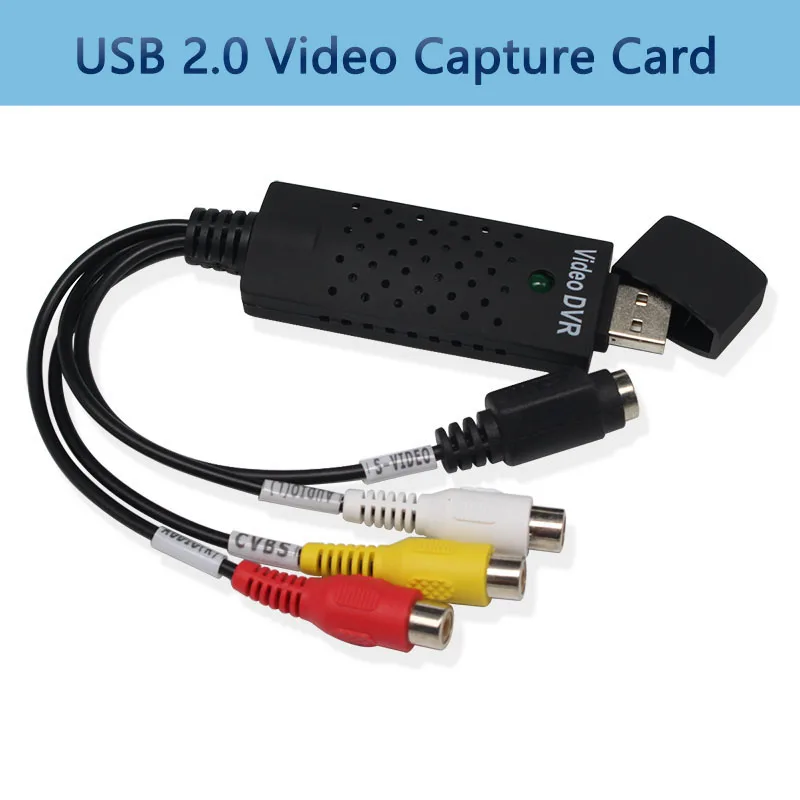
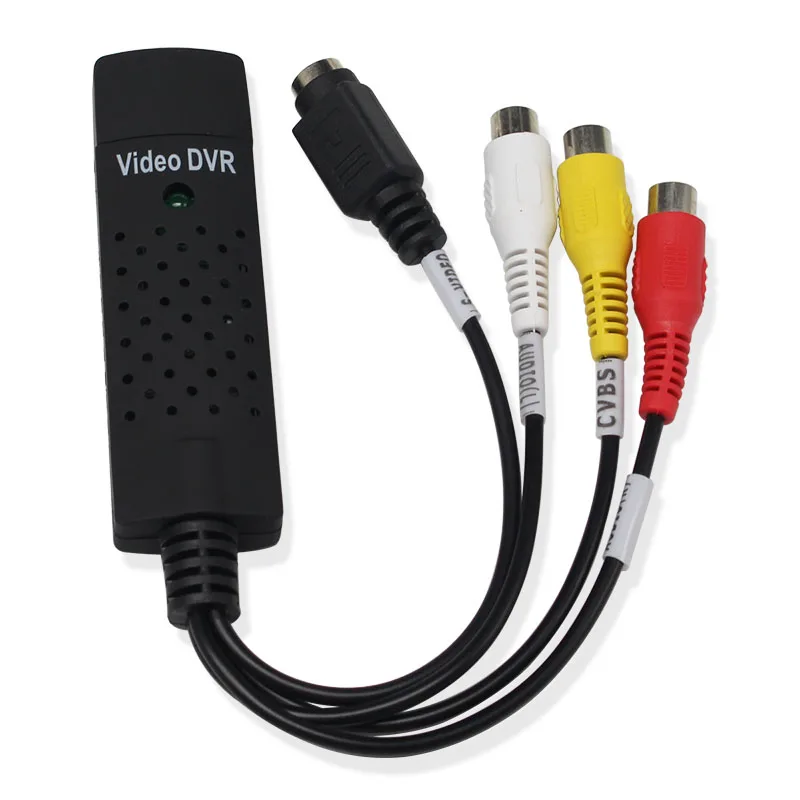
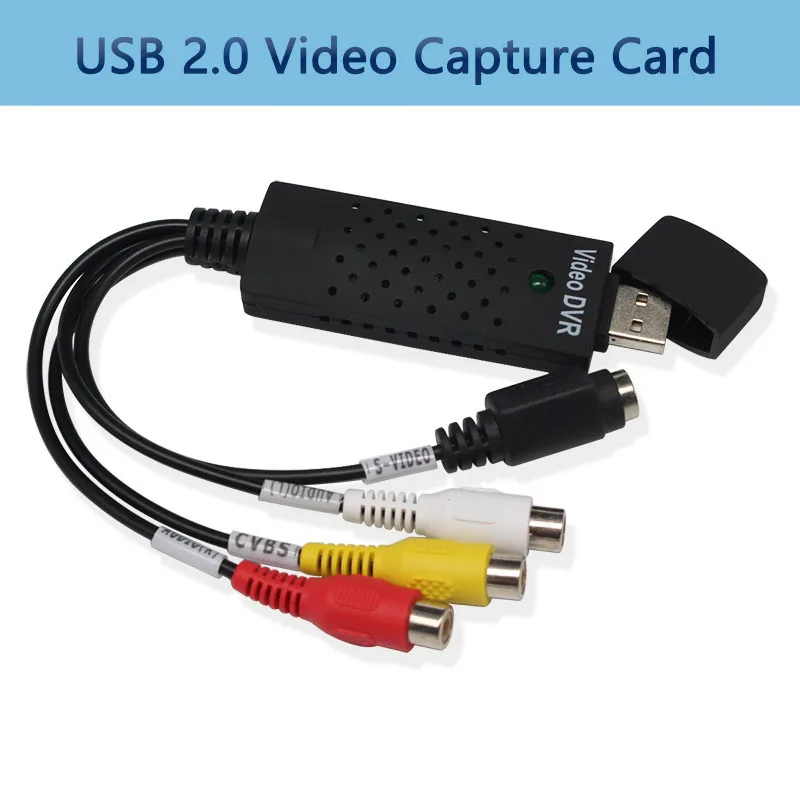
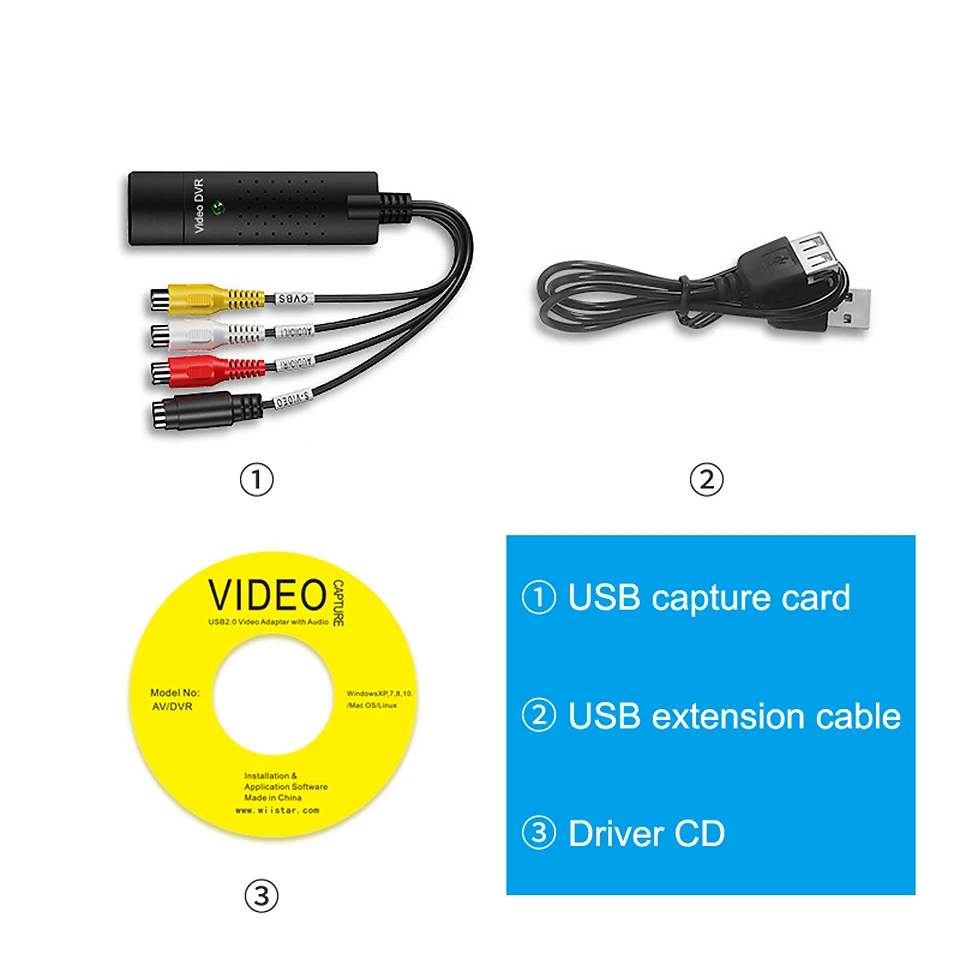
- NAME: USB 2.0 Video Capture Card
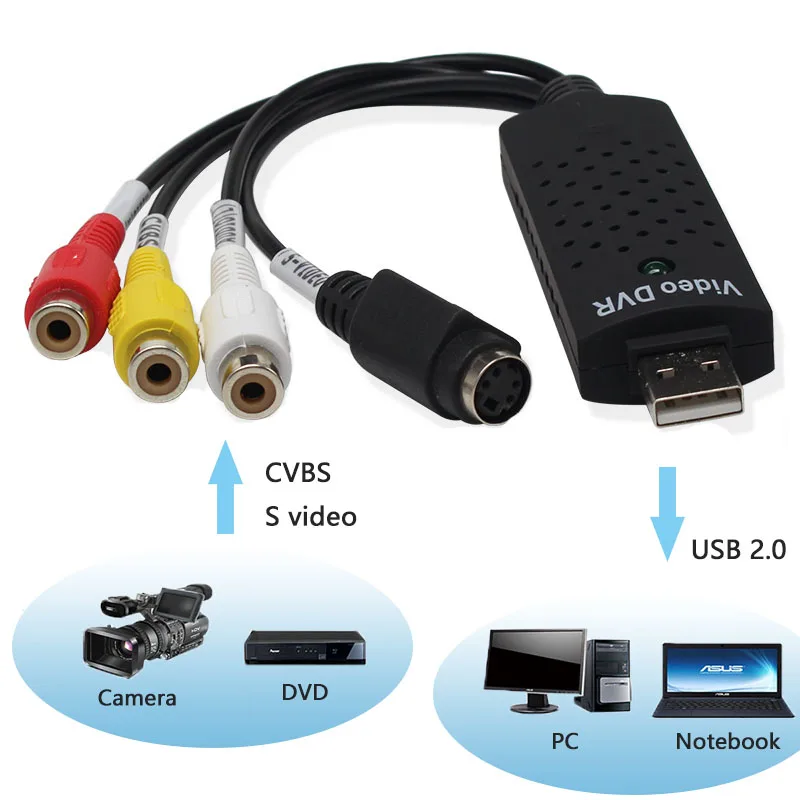
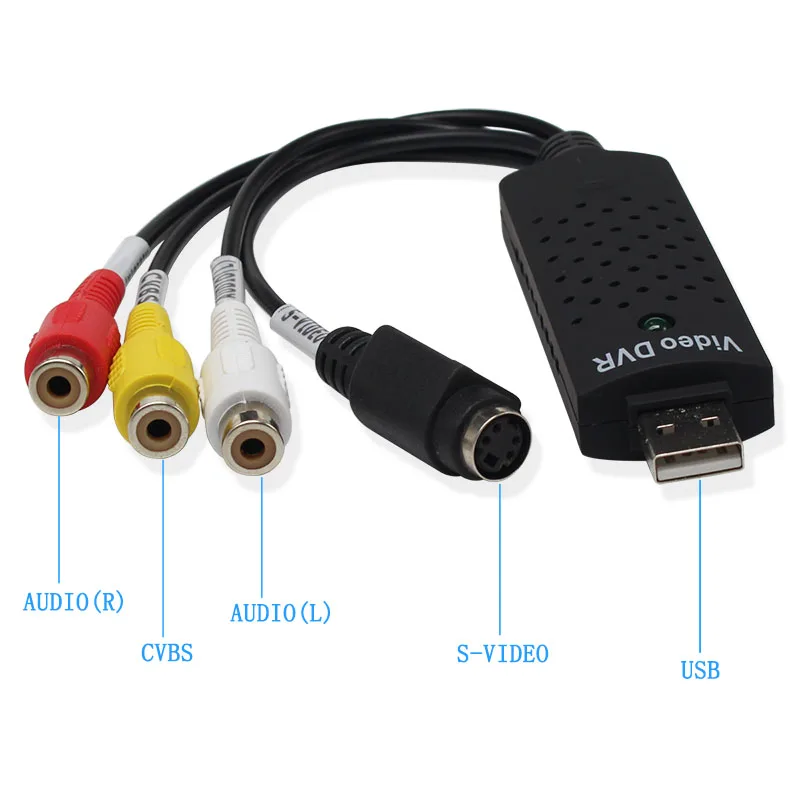
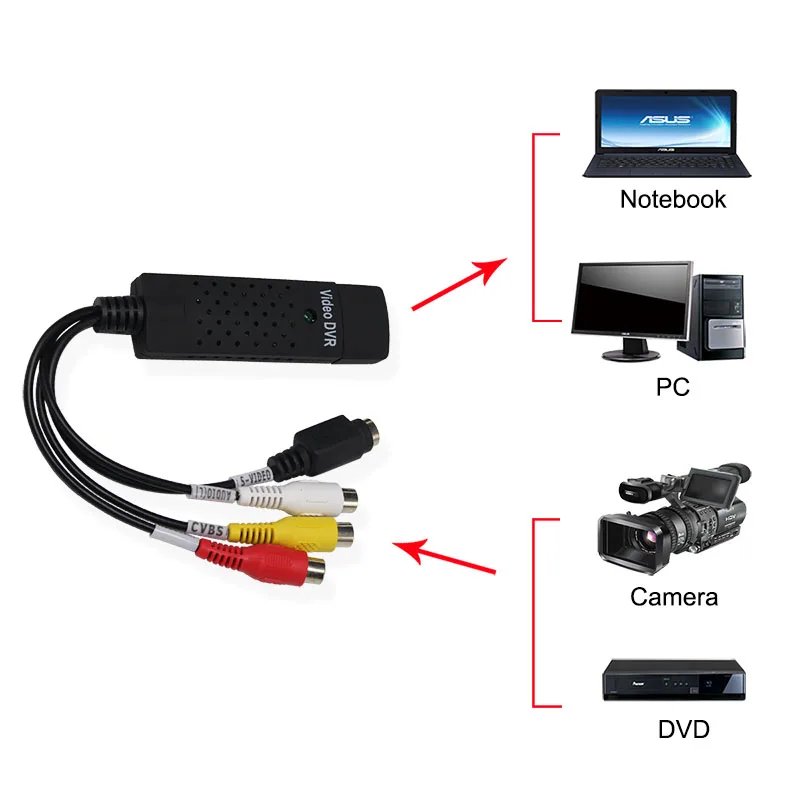
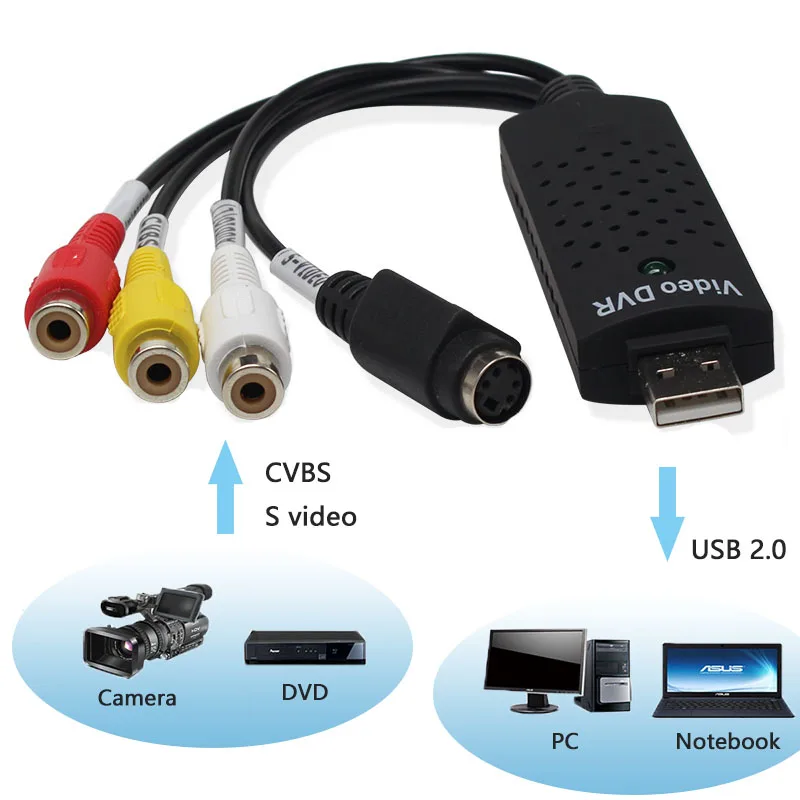
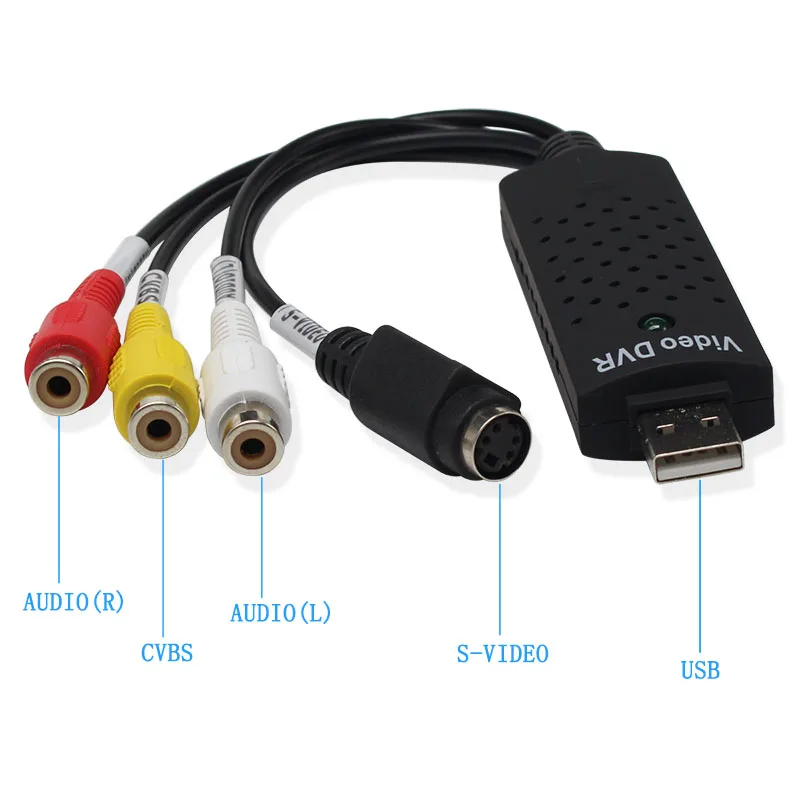
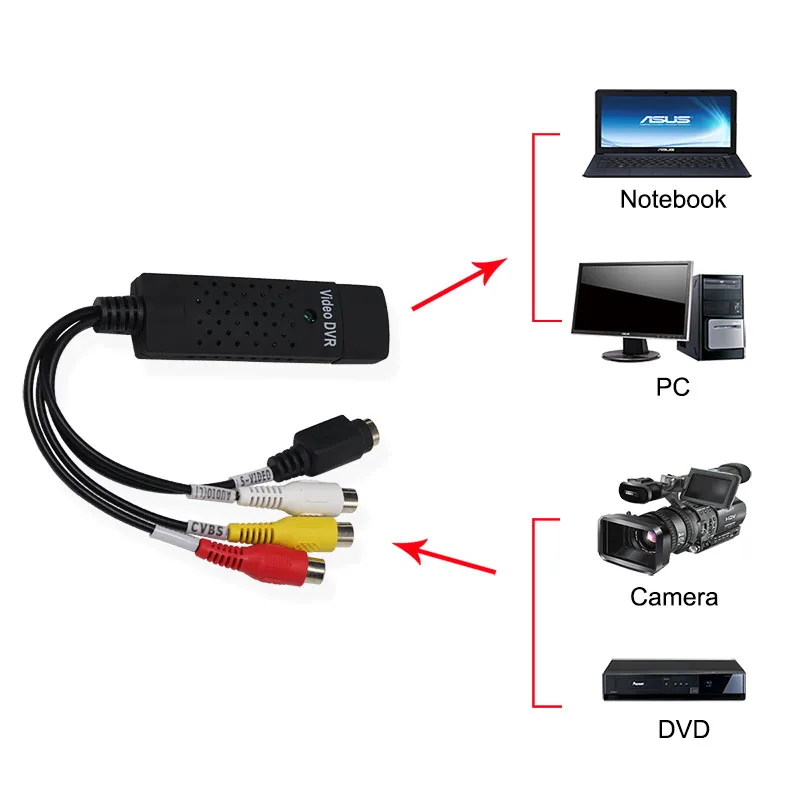
- in: AV; S-video
- out: USB 2.0
- OS: Windows 10/8/7/XP


USB 2.0 Video Capture Card Adapter Easy to Cap TV DVD Audio Capture Card USB Video Capture for Windows 10/8/7/XP Capture Video
This is USB Video Audio Easy to Cap Card, which can capture high-quality video and audio files direct by USB 2.0 interface without sound card. With the professional video editing software–Ulead Video Studio, it provides best editing function for you. High-speed rendering and real-time performance mean less time waiting and more time creating. By the way, you can also use it to create many special effects and clip video files, etc.
Capture Video & Audio via USB 2.0 interface directly (capture audio without the sound card).
Support Brightness, Contrast, Hue, and Saturation control.
Support all formats: record in DVD+/-R/RW, DVD+/-VR, and DVD-Video.
Characteristics:
Driver Free-Does not to install CD driver files. Easy to Capture from VHS Tapes,Hi8,Mini DV Camcorder to your PC.
Works with Windows computers without installing any drivers.
Digital photos – Create photos from the Videos – Compatible with: PAL / NTSC.
Analog video capture capacity of up to 25 fps with a maximum resolution of 640 x 480.
Plug&Play, no power adapter required.
Small, lightweight design offers convenient portability for on-the-go applications.
Package: (NO CD disk in the package)
1pcs x USB 2.0 Video Adapter
HOW TO CAPTURE VIDEO
As example in Potplayer(windows 7)
Install Potplayer software on the computer.
Double click the Potplayer icon to open the software.
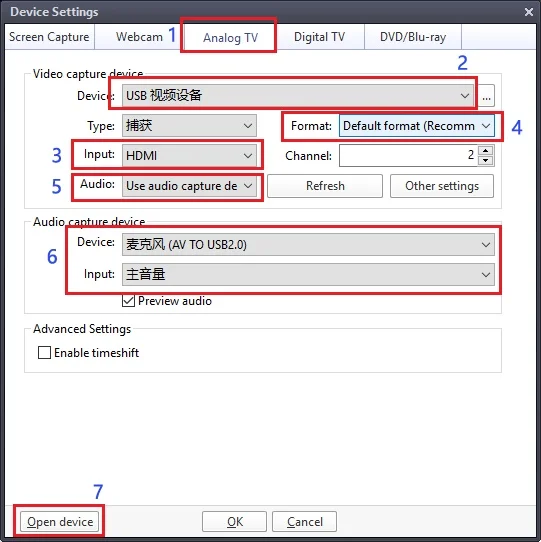
Click on “Potplayer Open Device Settings…” Or use the shortcut “Alt + D” to open the device settings window.
① Select “Analog TV”;
② Select “USB device” under the Video Device Box;
③ Select HDMI under the Input Box;
④ Select suitable for the resolution of the device under the Resolution Box;
⑤ Select “Use audio capture device” under Audio Box;
⑥ Select Audio capture device”AV TO USB2.0″
⑦ Click “Open device” to open the capture interface
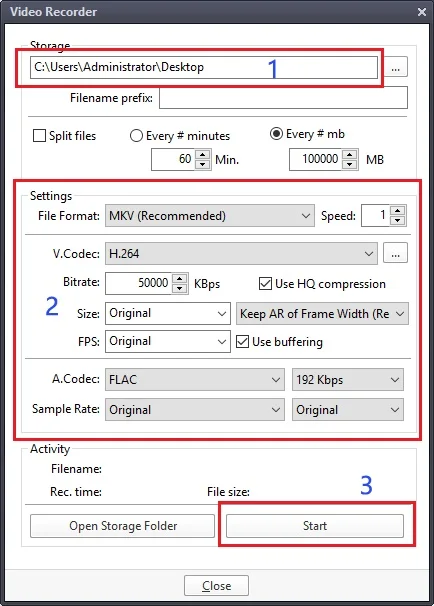
4. Click “Potplayer Video Video recoder” or press the shortcut key “Alt + C” to open the audio window.
① Choose a save location;
② Set up audio and video capture;
③ Turn on audio and video capture, then you can star to capture video and audio.
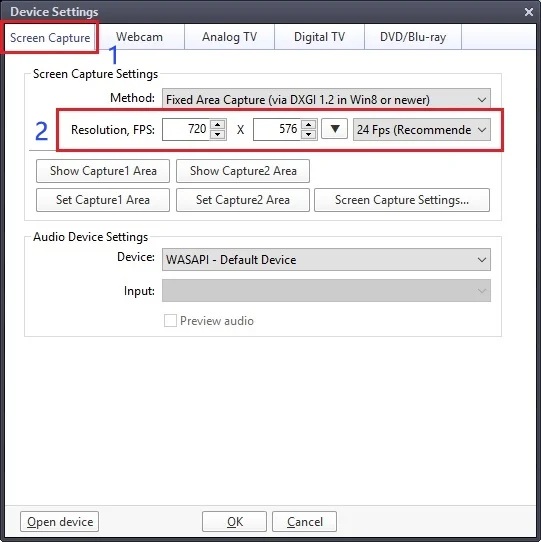
5. If you want to change the resolution of video, Click on “Potplayer Open Device Settings…” Or use the shortcut “Alt + D” to open the device settings window. Select “Screen Capture”,then you can change the resolution.